
Dotfiles: Taming Your Dev Environment (and Your AI Coding Agents)
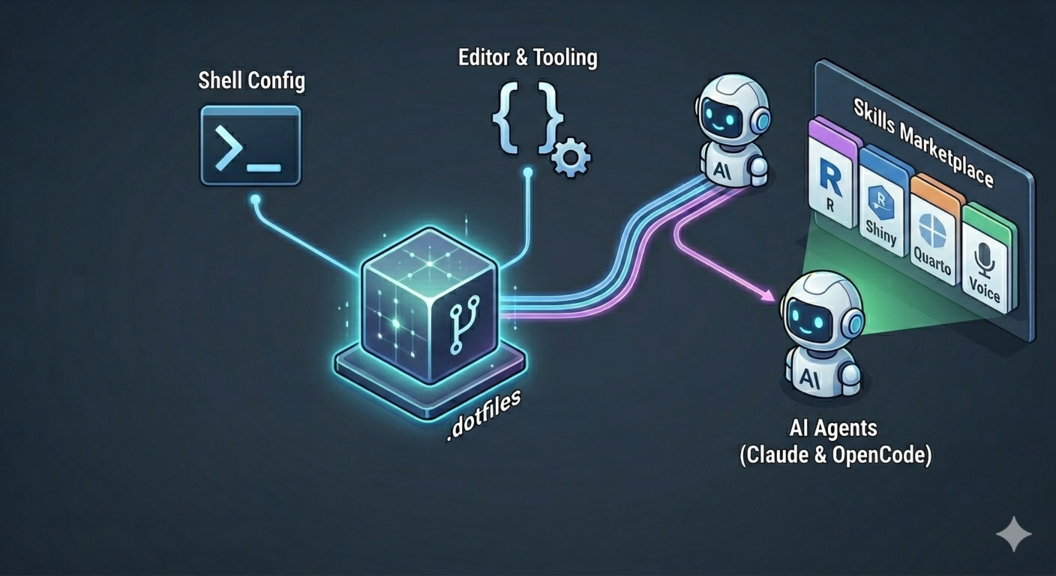
My dotfiles repo has evolved from basic shell configs to a full system that keeps my AI coding agents in sync. Here’s how I structure it, how the skill marketplace fits in, and how symlinks tie everything together.
I formatted my Mac last year and was so thankful my colleague Inge had helped me setup a dotfiles repo years ago.
If you’re not familiar with the concept: dotfiles are the hidden configuration files that live in your home directory (.zshrc, .gitconfig, etc.), and a dotfiles repo is a way to version control them so you can restore your entire setup on a new machine.
But here’s the thing — my dotfiles have grown well beyond shell configs. They now manage my AI coding agents too. With tools like Claude Code and OpenCode becoming central to how I actually work, I needed a way to keep their configurations consistent and shareable. So let me walk you through how I’ve set all this up.
The Basic Structure
My dotfiles live at ~/.dotfiles and get symlinked to where they need to be.
Here’s the layout:
.dotfiles/
├── config/
│   ├── ast-grep/        # Structural code search (R grammar)
│   ├── claude/          # Claude Code configuration
│   ├── opencode/        # OpenCode configuration
│   ├── env/             # Shell environment (zshrc, aliases, etc.)
│   ├── git/             # Git config and global ignore
│   ├── npm/             # Global npm packages list
│   ├── vscode/          # Positron/VSCode settings
│   └── Brewfile         # Homebrew packages
├── install/
│   ├── symlinks.sh      # Creates all the symlinks
│   ├── homebrew.sh      # Installs brew packages
│   ├── apps.sh          # Builds tools & installs packages
│   └── ...
├── install.sh           # Main installer
├── update.sh            # Updates everything
└── backup.sh            # Backs up before changes
The key insight is that everything lives in config/, and a single script — install/symlinks.sh — creates the links to wherever each tool expects its config:
safe_symlink "$DOTFILES/config/claude" "$HOME/.claude"
safe_symlink "$DOTFILES/config/opencode/opencode.json" "$HOME/.config/opencode/opencode.json"
safe_symlink "$DOTFILES/config/env/zshrc" "$HOME/.zshrc"
So I edit files in one place, version control them, and they’re automatically active wherever the tools look for them. No copying. No “wait, which machine did I set that up on?”
Configuring R
I install R through Homebrew, using cask 'r-app', which is the only R installation through Homebrew I have found that actually works as expected.
I should probably start looking into using Rix, but even with that a globally installed R-version is something I’d always want.
Next is my very simple file that installs the R-packages I regularly use and would always expect to be on my system.
install.packages("pak")
pak::pkg_install(
    c(
        "blogdown",
        "praise",
        "covr",
        "devtools",
        "httr2",
        "janitor",
        "knitr",
        "lintr",
        "pkgdown",
        "quarto",
        "renv",
        "reprex",
        "rmarkdown",
        "roxygen2",
        "styler",
        "testthat",
        "tidyverse",
        "usethis",
        "vcr",
        "vdiffr",
        "ellmer",
        "mcptools",
        "btw"
    ),
    upgrade = TRUE,
    ask = FALSE
)
I’ve been considering adapting this to look more like the Brewfile I have, but for now, the list is small enough to have it handled like this.
Configuring AI Coding Agents
Here’s where it gets interesting. Both Claude Code and OpenCode read configuration from specific locations, and I want them to behave consistently. I don’t want Claude on my laptop doing things differently from Claude on my work machine, and I definitely don’t want to manually set up my preferences every time I install a fresh system.
Claude Code
Claude Code looks for its config in ~/.claude/.
My setup there includes two important files.
settings.json is the main configuration:
{
    "customInstructions": "You are working with an R package developer...",
    "fileExclusions": [
        ".Rproj.user/**",
        "node_modules/**",
        ".git/**",
        "docs/**"
    ],
    "autoApprovePatterns": [
        "**/*.Rd",
        "**/NEWS.md",
        "**/NAMESPACE"
    ]
}
The customInstructions tell Claude about my preferences — no unnecessary comments, tidyverse style, concise responses.
The fileExclusions prevent it from reading generated files (trust me, you don’t want your agent trying to parse your .Rproj.user directory).
And autoApprovePatterns lets routine R package documentation updates happen without me clicking “approve” every single time.
That last one is a real quality-of-life thing — when you’re iterating on roxygen docs, the approve clicks add up fast.
CLAUDE.md contains high-level instructions that apply across all projects:
# Coding Standards

- No code comments except when explaining necessary workarounds
- Self-explanatory naming
- R: tidyverse style, roxygen2 docs, testthat (describe/it) structure
- Hugo: semantic CSS classes, minimal JS
- Concise, direct responses
This is essentially “how I like things done” written down once instead of repeated in every conversation. But I do find I need to remind the models once in a while what I like and don’t like.
OpenCode
OpenCode is an open-source alternative I’ve been experimenting with.
Its config lives at ~/.config/opencode/opencode.json.
The neat part: I can point it to the same instruction file that Claude Code uses:
{
  "model": "anthropic/claude-sonnet-4-5",
  "instructions": [
    "{file:~/.claude/CLAUDE.md}"
  ],
  "watcher": {
    "ignore": [
      ".Rproj.user/**",
      "node_modules/**"
    ]
  }
}
Same instructions, same exclusions.
Consistency across tools without duplication.
I like that a lot — if I refine a preference in CLAUDE.md, both tools pick it up.
Skills: Marketplace and Custom
Claude Code supports “skills” — reusable instruction sets for specific tasks. Think of them as expert knowledge you can plug in: how to write R package tests, how to style a Quarto document, how to write in a particular voice.
I initially tried managing community skills as git submodules. That seemed like the obvious approach — just point submodules at the GitHub repos and pull updates. But the nested folder structure made it awkward. Skills repos contain their own directory hierarchies, and neither Claude nor OpenCode picked up skills when they were nested like that.
Claude Code’s skill marketplace turned out to be a much better fit. There is a lovely post on Skills and the Markedplace from Snyk, that explains in more details what they are and what to look out for.
One thing I will mention for clarity, make sure to do your due dilligence when adding skills from a 3rd party. It is absolutely possible to have injections in skills that pose real security risks.
The Marketplace
Skill marketplaces are GitHub repos that bundle related skills. You add a marketplace, then install individual skills from it — or install everything at once.
I manage this declaratively through a plugins.conf file in my dotfiles:
# Marketplaces to add and install ALL plugins from
[install-all]
posit-dev/skills
drmowinckels/straight-talk # Clone of apreshill/straight-talk made for markedplace
DrCatHicks/learning-opportunities

# Marketplaces to browse (pick plugins manually)
[marketplaces]
anthropics/skills

# Individual plugins from browsable marketplaces
[plugins]
document-skills@anthropic-agent-skills
example-skills@anthropic-agent-skills
The [install-all] section is for marketplaces where I want everything — Posit’s R/Shiny/Quarto skills, for instance.
The [marketplaces] section adds repos I want to browse but not auto-install from (Anthropic’s official skills collection is huge, and I only want specific ones).
Then [plugins] lists the individual picks.
My install/claude.sh script reads this file and runs the claude plugin commands:
claude plugin marketplace add "$source"

# For [install-all] marketplaces, install every plugin
claude plugin install "$plugin@$marketplace_name"
The result in settings.json is a clean map of what’s enabled:
{
  "enabledPlugins": {
    "r-lib@posit-dev-skills": true,
    "quarto@posit-dev-skills": true,
    "shiny@posit-dev-skills": true,
    "writing-voices@straight-talk": true,
    "document-skills@anthropic-agent-skills": true
  }
}
The Posit skills repo includes gems like testing-r-packages (comprehensive testthat guidance) and brand-yml (styling for pkgdown sites).
Alison Hill’s straight-talk repo has writing skills I use as a foundation for my own voice — more on that in a moment.
The beauty of this approach is that community skills stay upstream where they belong. When Posit improves their R testing skill, I get the update through the marketplace. No submodules to sync, no files to copy-paste.
Custom Skills
Of course, not everything comes from the community.
My personal skills live in config/claude/skills/ and extend or customize the marketplace ones.
For example, my r-package/skill.md builds on Posit’s testing skill with my own style preferences:
# R Package Development - Personal Preferences

Specific style preferences and workflow choices for R package development.
Use alongside Posit `testing-r-packages` for comprehensive guidance.

## Code Style Philosophy

### Self-Explanatory Code Without Comments

Functions and variables should be named clearly enough that comments
are unnecessary...
And drmo-voice/skill.md captures my writing style for blog posts (yes, this very post was drafted with it active!):
# Dr. Mo's Voice

Write like you're explaining something to a smart friend who hasn't
encountered this specific thing yet. Be the guide you wished you had.

**Foundation:** This skill builds on the codex-voice principles.
Start there for the fundamentals of honest, reader-first technical writing.
These are things I’d otherwise repeat in every conversation. Now they’re documented once and available whenever I invoke the skill.
What About OpenCode?
OpenCode doesn’t have a skill marketplace — it reads instruction files directly.
So while Claude Code gets the full marketplace ecosystem, OpenCode still picks up my CLAUDE.md and any custom instructions I point it to.
Not quite the same breadth of skills, but the core coding preferences stay consistent across both tools.
The Update Workflow
Keeping all of this current is surprisingly easy.
My update.sh script pulls everything together:
# Update dotfiles from git
git pull origin main

# Refresh symlinks
./install/symlinks.sh

# Update Homebrew packages
brew bundle --file="$DOTFILES/config/Brewfile"

# Update Claude Code marketplace plugins
./install/claude.sh
One command. Shell config, editor settings, AI agent instructions, community skills — all current.
Declarative Package Management
As I built this out, a pattern emerged that I really like: list what you want in a file, let a script install it.
Homebrew already works this way with the Brewfile — you declare your packages, run brew bundle, and you’re done.
I extended the same idea to npm packages and VSCode/Positron extensions:
config/
├── Brewfile                   # brew bundle --file=...
├── npm/global-packages.txt    # one package per line
└── vscode/extensions.txt      # one extension ID per line
The npm packages file is about as simple as it gets — one package per line:
autoprefixer
esbuild
postcss-cli
tree-sitter-cli
And the install script just reads through it:
while IFS= read -r pkg || [ -n "$pkg" ]; do
    [ -z "$pkg" ] && continue
    npm install -g "$pkg"
done < "$packages_file"
No hardcoded install commands scattered across scripts. When I need a new global package, I add a line to the file. Same pattern, every tool. There’s something satisfying about that consistency.
Feeding Config Back to Your AI Agent
Here’s a pattern I didn’t plan for but turned out to be genuinely useful: when you add a new tool to your dotfiles, you can teach your AI agent about it at the same time.
I recently set up ast-grep for structural code search in R, inspired by Emil Hvitfeldt’s post on using CLI tools with Claude Code. The setup involved the usual dotfiles pieces — Brewfile entry, config file, shell alias, install script for building the tree-sitter grammar.
But I also added a section to CLAUDE.md explaining the syntax — that _VAR is the metavariable sigil (not $VAR, since R uses $ for column access) and how to invoke it:
sg -l r -p '_FUN(_ARG)' .
Now Claude Code knows how to use ast-grep with R whenever it needs structural search.
The tool config and the AI instructions live in the same repo, updated in the same commit.
That’s the kind of thing that’s easy to forget if your agent config lives somewhere separate.
This feedback loop — install a tool, teach the agent — happens naturally when everything lives in your dotfiles. The alternative is hoping you remember to explain your tooling in every new conversation, and I’ll be honest, I never do.
Why This Matters
Before this setup, I had instructions scattered everywhere. Project-specific config files that half-overlapped. Mental notes about “how I like things done” that I’d forget to mention. Inconsistent behavior between tools that I’d only notice when something came out wrong.
Now:
- New machine? Clone the repo, run
install.sh, done. - New AI tool? Point it at the same instruction files.
- Better skill from the community? Install it from the marketplace.
- Refined my preferences? Edit once, applies everywhere.
The AI coding agents are the newest addition to my dotfiles, but they follow the same principle as everything else: define it once, symlink it to where it needs to be, version control the whole thing.
If you’re using Claude Code or similar tools regularly, I’d really encourage you to move their configs into your dotfiles.
It doesn’t have to be as elaborate as mine — even just getting your CLAUDE.md and settings.json under version control is a great start.
Future you — reinstalling on a new machine at midnight with a deadline — will thank present you.
Resources
- My dotfiles repo (feel free to fork and adapt)
- Emil Hvitfeldt’s ast-grep post — CLI tools for coding agents
- Posit Skills — Official R/Shiny/Quarto skills
- Alison Hill’s straight-talk — Writing voice skills
- GitHub does dotfiles — Inspiration and examples
2026-dotfiles-taming-your-dev-environment-and-your-ai-coding-agents,
author = "Dr. Mowinckel",
title = "Dotfiles: Taming Your Dev Environment (and Your AI Coding Agents)",
url = "https://drmowinckels.io/blog/2026/dotfiles-coding-agents/",
year = 2026,
doi = "https://www.doi.org/10.5281/zenodo.18835306",
updated = "Apr 1, 2026"
}